
In this article, I will show you step-by-step how to create your own website using the Odoo Website Builder – from a blank page to a finished service that you can publish and edit yourself.
Start – you are new in Odoo
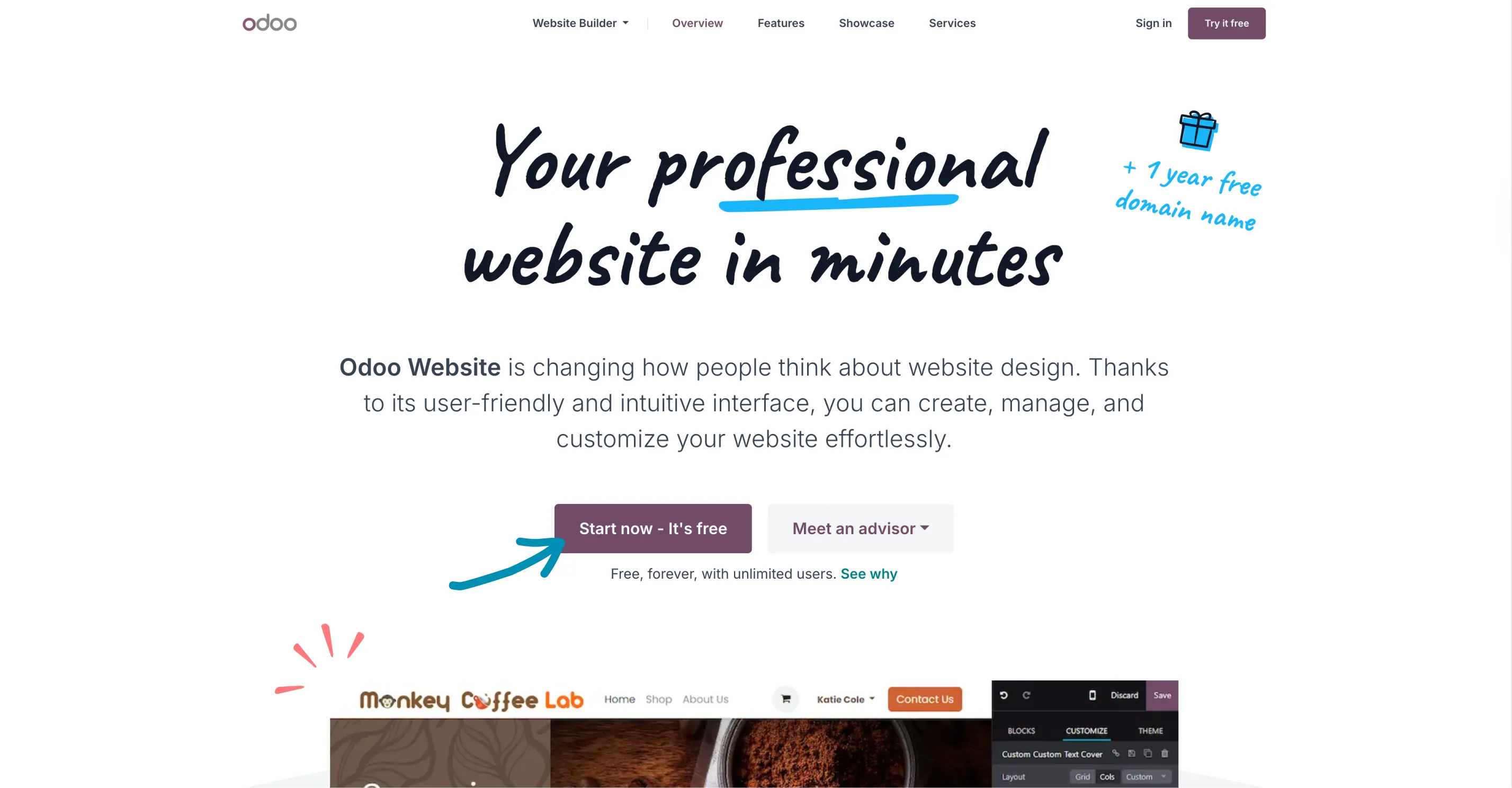
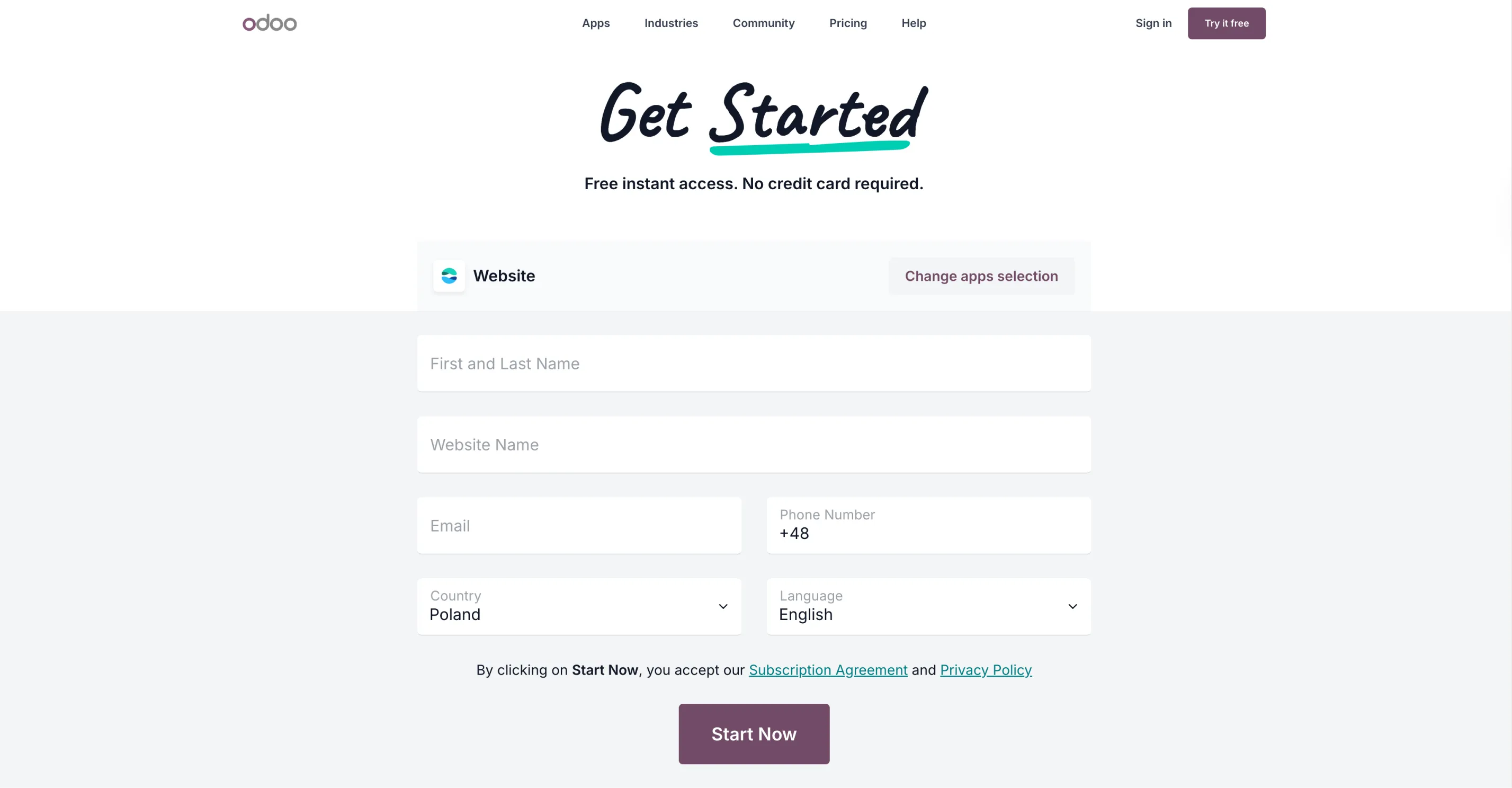
If this is your first time encountering Odoo, go to Odoo's Website Builder, click the "Start now - it's free" button and enter your details.
If you already have Odoo, the Website Builder is already one of your modules.
Start – when you have an Odoo
When you access the Website module for the first time, which covers a wide range of activities related to your website, Odoo guides you from the very beginning and suggests help from the AI Assistant.
AI configurator – quick start
Odoo will suggest an AI-powered configurator. You can skip it and start from scratch, but I want to see what the AI is capable of.
I choose:
- site type: business,
- target audience: a marketing agency,
- goal: more leads
- color palette (the AI can match it to your logo),
- sections to include on the page: About us, Services, Pricing, Privacy policy.
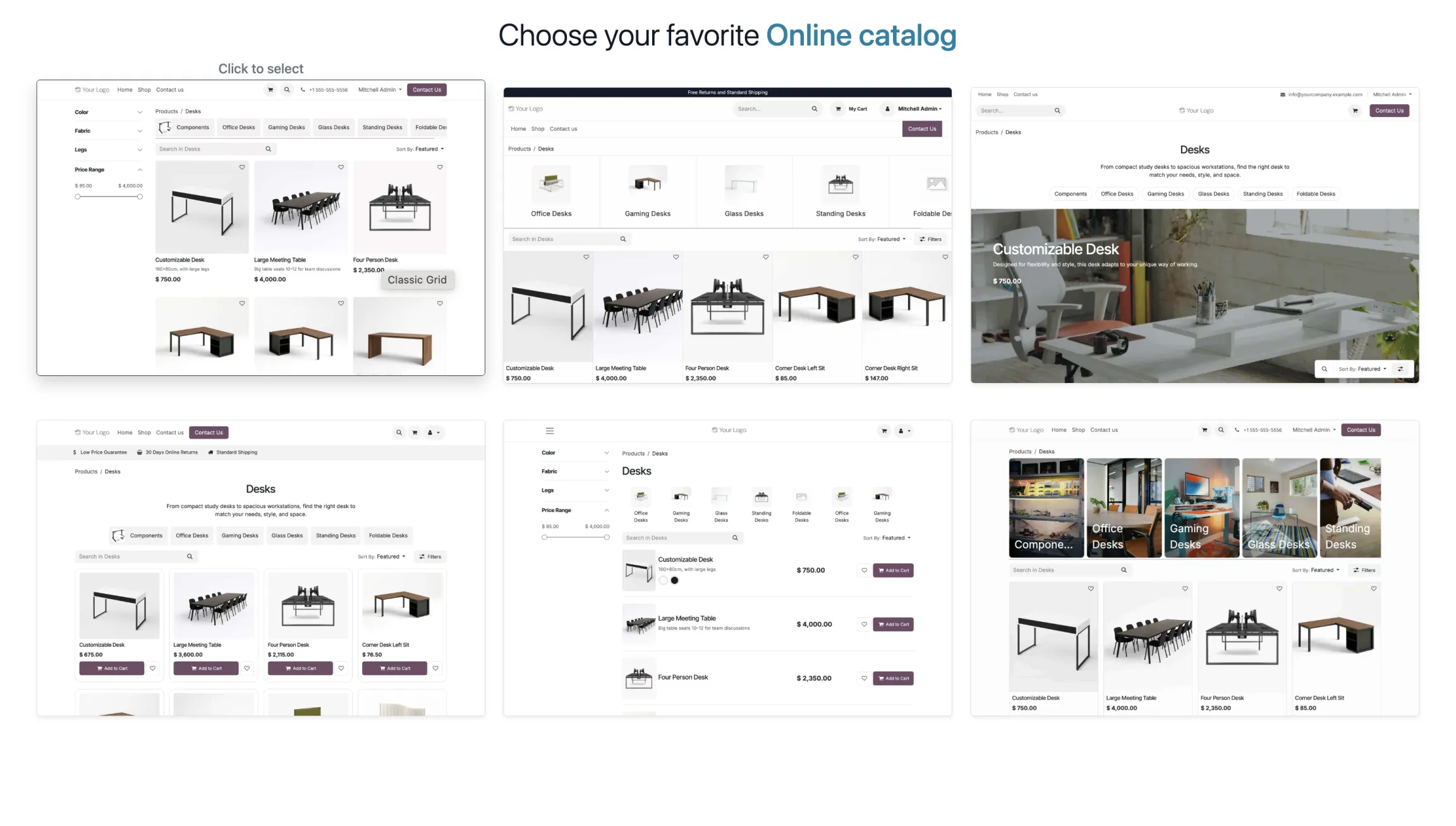
Then, I select one of the ready-made graphic themes and click "Next". After a moment, the system generates the website – complete with a layout, images, and texts.
Page editing
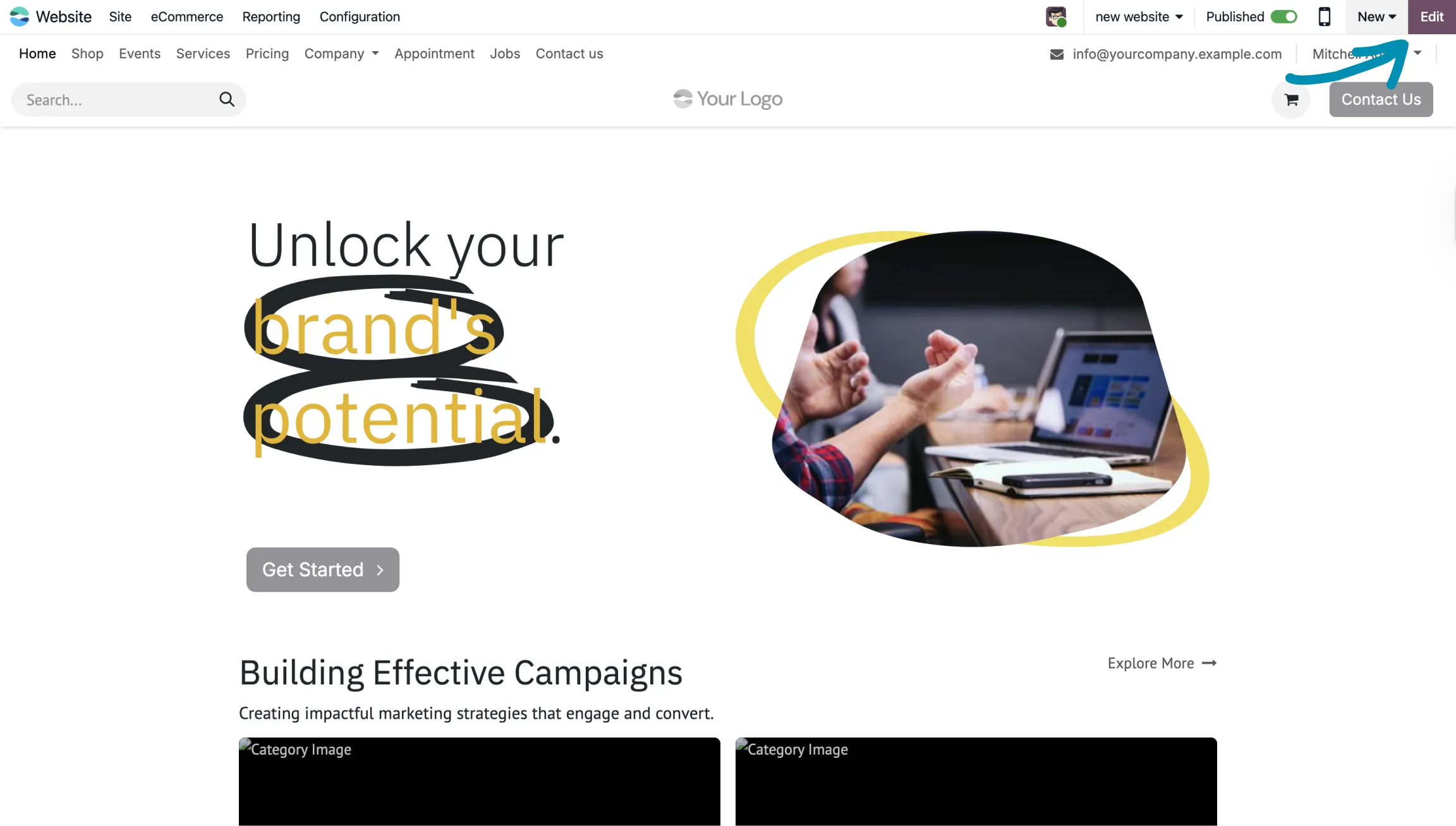
I click “Edit” and enter edit mode. Every element can be:
- moved around,
- text changed,
- image replaced,
- new sections or buttons added.
Editing the page is very intuitive; a few minutes should be enough to become comfortable operating in the system.
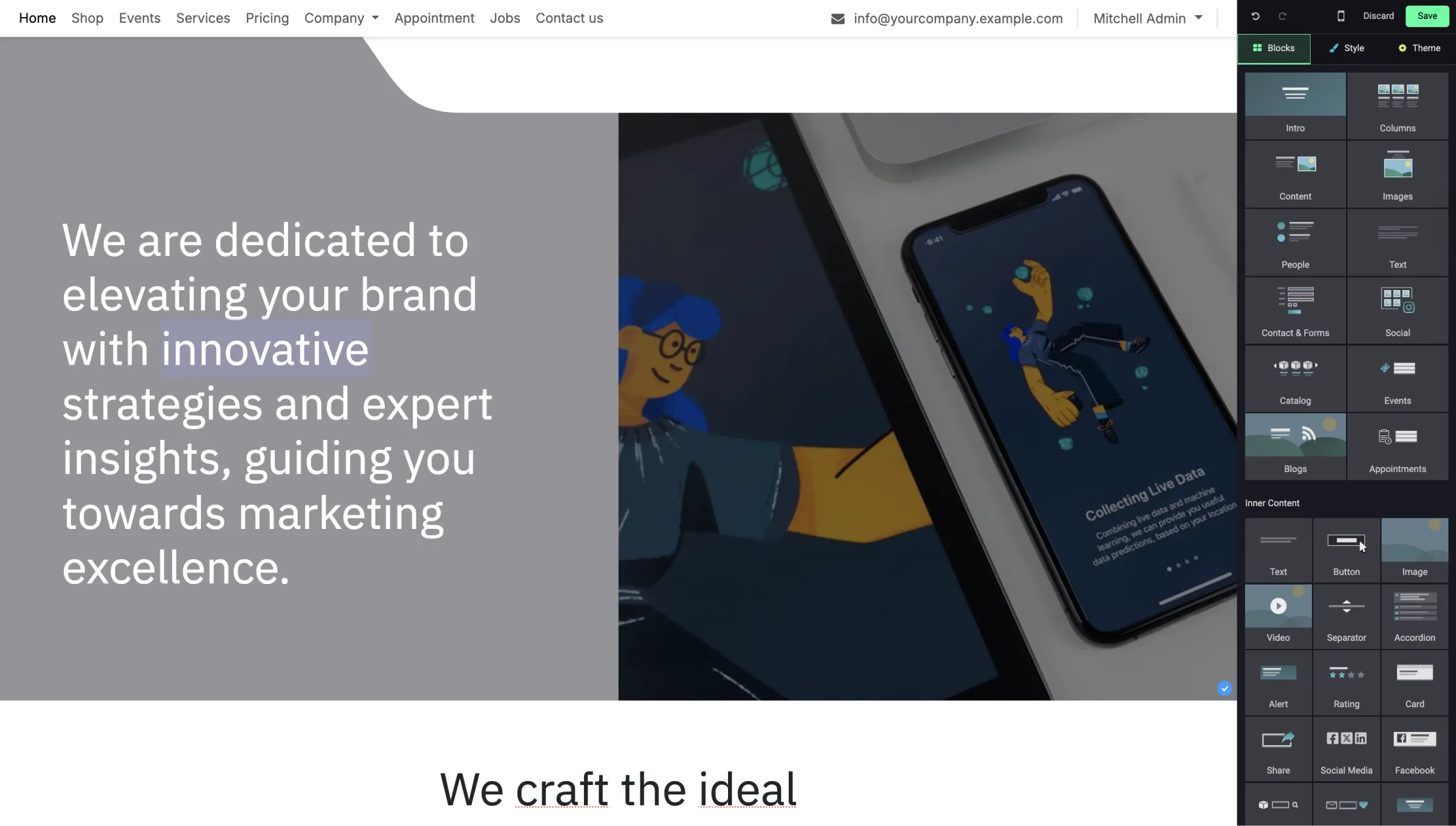
Menu editing
I click the menu and I can:
- change the template,
- add or remove links,
- adjust the appearance.
Adding new blocks
In edit mode, there is a "Blocks" tab, which is where you can add new elements to the page. Here you will find several ready-made block templates, as well as integrations with existing modules – more advanced elements like dynamic content, forms, Google Maps, or other features that can be activated after installation.
There are a lot of options, so the best approach is to experiment yourself – click on different blocks to see how they look and behave on the page. For example:
- “Features” block – automatically adds three columns with feature descriptions,
- “Pricing” block – an elegant, fully editable pricing table,
- “Products” block – can display, for example, cars from the "New" category, with the option to change the number of elements and the layout.
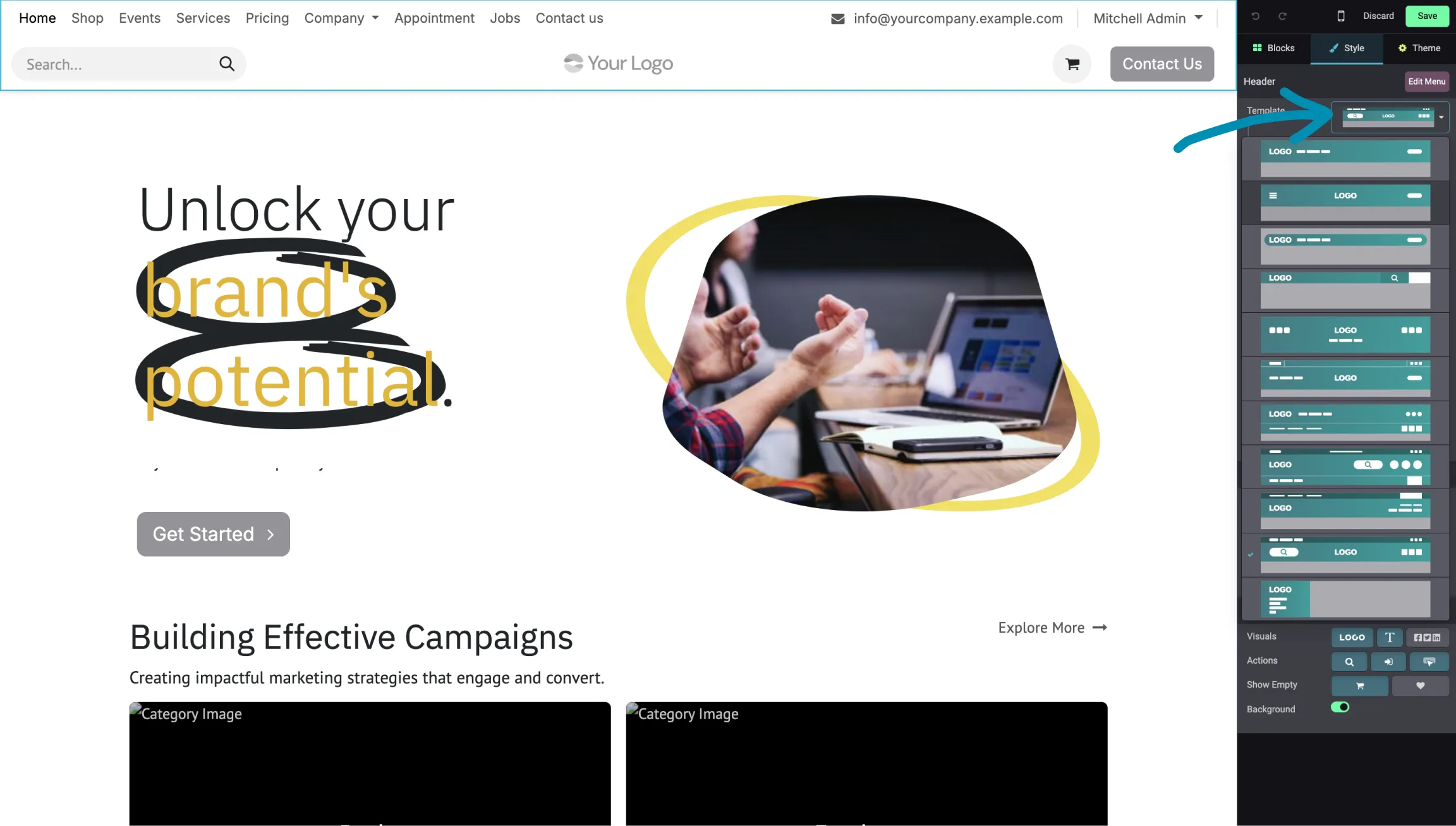
Contact forms
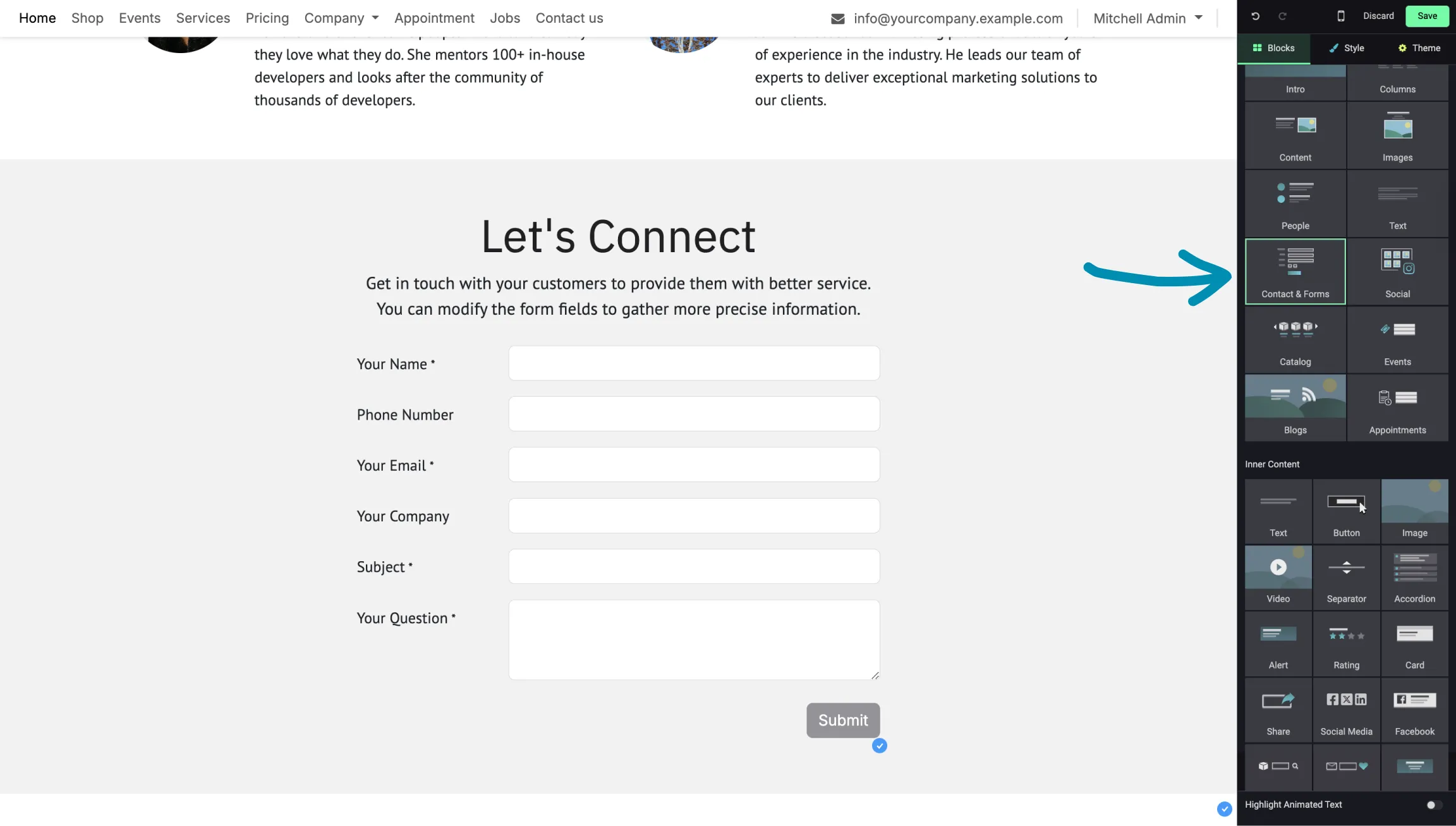
I add the “Form” block.
I select which fields are required and what should happen after submission. When a visitor fills out the form on our website, it can:
- send an email,
- create a sales opportunity in the CRM,
- assign a salesperson,
- display a “Thank you!” message after submission.
Everything works instantly; upon submission, the data is automatically transferred to the CRM.
HTML, CSS, and JavaScript customization
For those who enjoy full control – Odoo allows you to edit the code.
In the “Page” section, you can access HTML, CSS, or JS to add your own classes, styles, or scripts.
This is a great option if you want to give your site a unique touch.
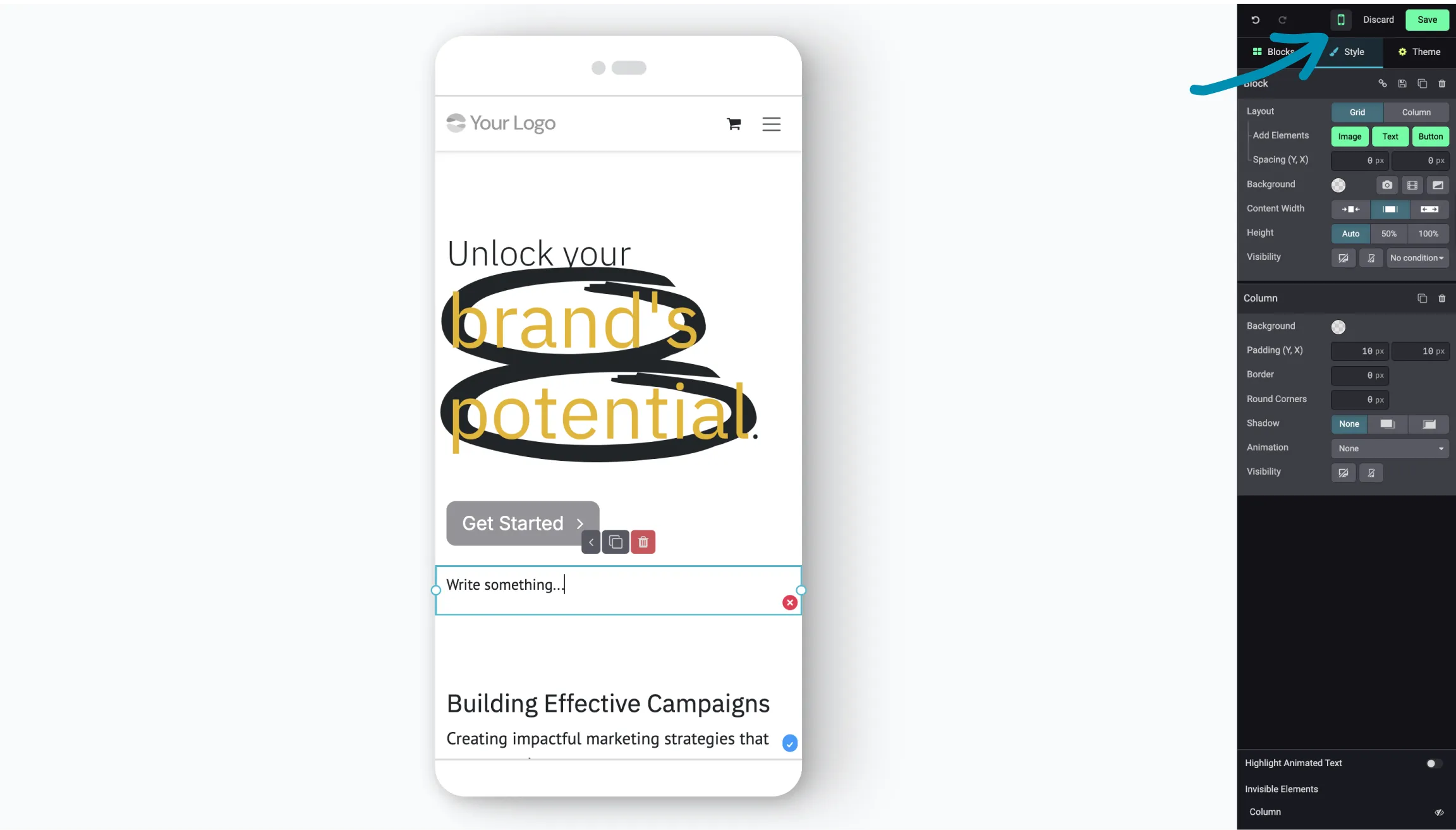
Mobile view
By clicking the phone icon, you can check how the page looks on mobile devices.
If something doesn't look right – for example, a button is too big – you can hide it only on smartphones.
The effect is visible immediately after saving the changes.
SEO and Google preview
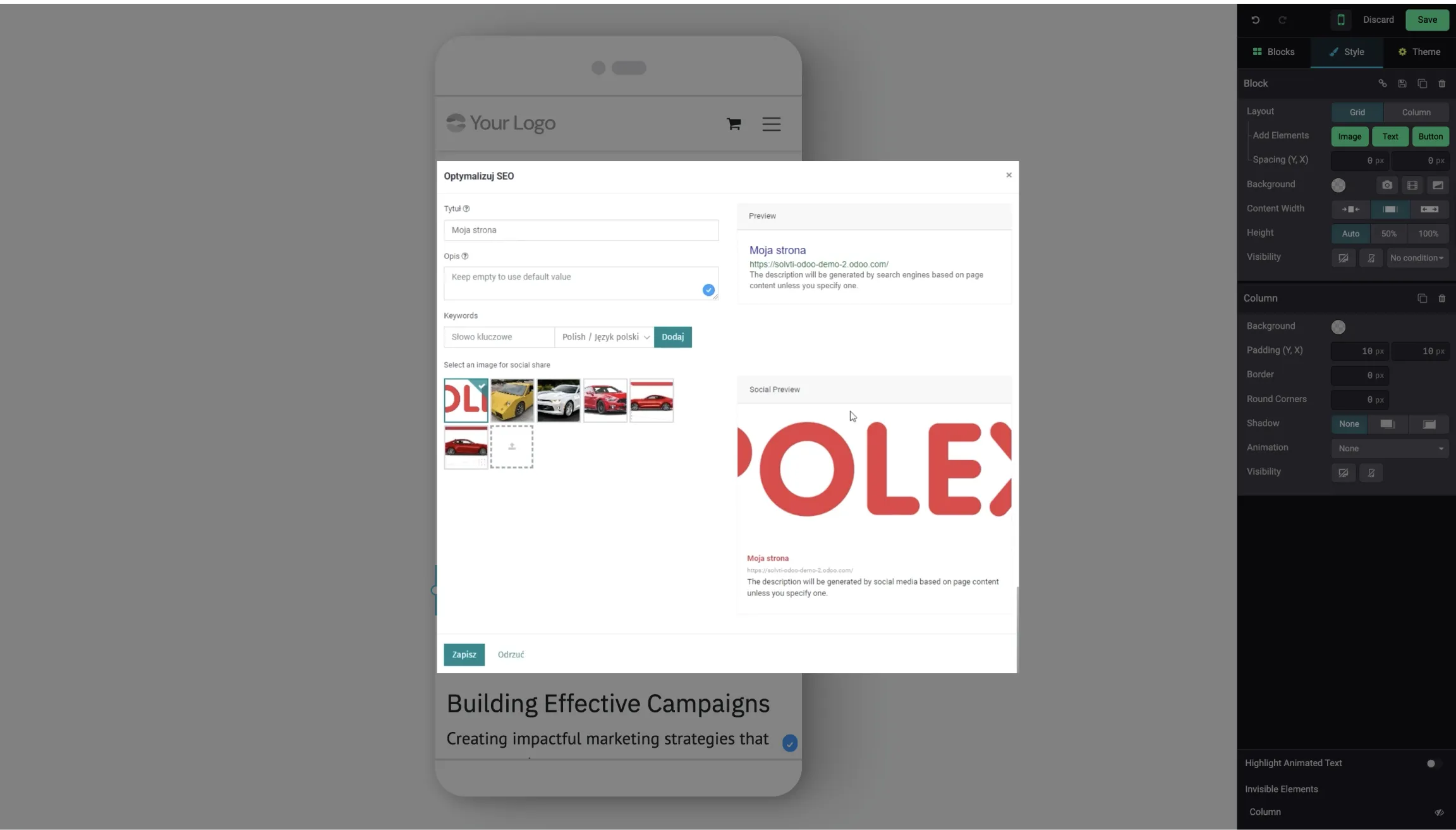
In the “Page” tab, you will find “Optimize SEO”, where you can set things like:
- page title,
- description,
- keywords,
- a preview of how the page will appear in Google results.
Further down, you will also find a social media preview, which shows how the link will look, for example, on Facebook or LinkedIn.
Publication - what's next?
It's ready! The page is functional, looks good on desktop and mobile, includes a form, and is optimized for SEO.
What I covered in this article is just the tip of the iceberg of all the possibilities offered by a website in Odoo. If you want to test everything yourself, you can use the Odoo test system that I used for this article.
And if you prefer us to prepare a professional website for your company – contact us, we'll be happy to help!