
Imagine you stop clicking through ten filters to see which invoices went unpaid. You just type it.
Or that before you pick up the phone to a client, the system has already told you what the last conversation was about.
Or that a client sends over a PDF with an order spec, and instead of retyping the whole thing, you get a record built from it.
That sounds like 2030, but it is not. Welcome to AI in Odoo.
This article was first written around Odoo 19. Then Odoo 20 shipped on 24 September 2026, and a lot changed: agents now run inside automations, Odoo has a native MCP server, and every AI feature now runs on IAP credits. So we rebuilt the list. It now covers 75 ways AI in Odoo can take work off your desk, and we mark what is new in Odoo 20.
Let's get straight to it.
A typical Monday, and what your team actually asks
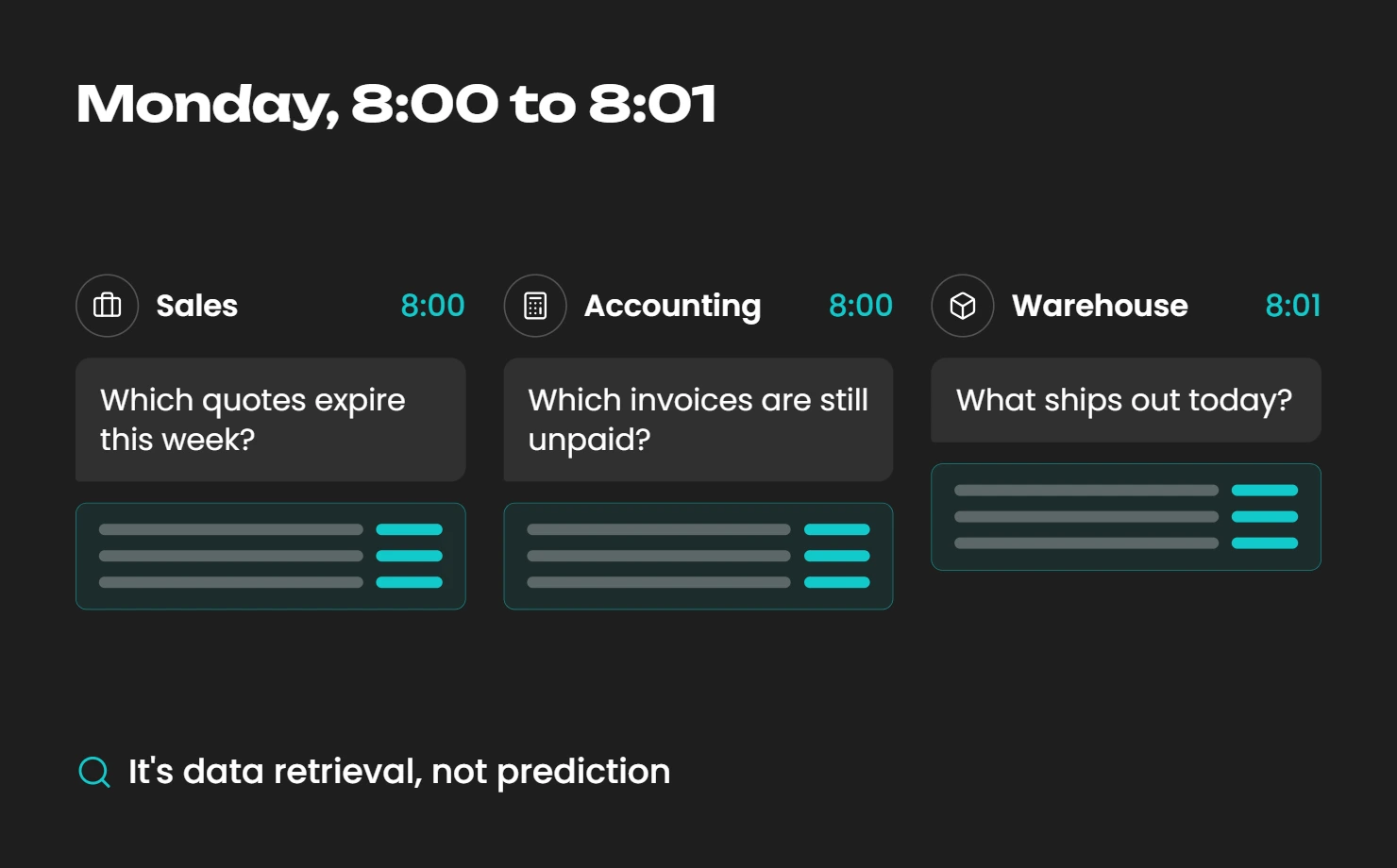
Forget the product tour for a second and picture a Monday morning in a trading company.
The sales rep sits down and types "show me my open opportunities from this quarter". A view appears. Nobody went hunting through a menu, and nobody built a filter. In Odoo 20 this got sharper: agents can now filter by periods such as weeks or quarters when they build a view.
Accounting wants invoices overdue by more than 30 days. Same move, asked in plain language instead of assembled filter by filter.
The warehouse manager asks where stock dropped below minimum and gets the answer before the coffee is finished.
That is already four use cases, and we are thirty seconds into the day:
- Unpaid invoices on demand.
- Your own pipeline filtered by quarter.
- Ageing receivables without building a filter.
- Stock below minimum before anyone asks.
All of this runs on Ask AI, the agent you reach from the AI button in any app. And here is the bit worth being honest about: this is retrieval, not prophecy. Odoo reads data you already have and puts it on screen. It is not forecasting anything. We will come back to that, because it is the single most misunderstood thing about AI in Odoo.
Individually these look like nothing. Multiply them across a whole team every working day and you are talking about real hours going back into the company.
Two more live in the same place:
- Summarise a whole chatter thread on a record. That is the "what did we last talk about" trick from a minute ago.
- Translate the most recent chatter message. It sounds trivial until you run a support inbox across several countries.
AI fields: the summaries nobody wants to write
Here is where the time saving stops being just cool and starts being measurable.
Instead of writing a client situation summary by hand after every call, you define the instruction once and Odoo generates the text from whatever is already on the record. That is an AI field.
Setting one up is a drag-and-drop job in Studio. You drop the field on the form, tick the AI option, write one sentence about what you want, and from then on a click of the AI icon refills it. No code.
What people actually build with these:
- A client situation summary you refresh with one click after a call.
- Auto-tagging leads by industry, worked out from the company name and email.
- Scoring the sentiment of a support ticket from one to five, based on the chatter.
- Pulling a two-sentence summary out of a long escalation.
- Routing tasks, so "invoice discrepancy" lands with finance and "server outage" lands with IT.
- Writing product descriptions, or turning unstructured notes into structured content.
Items 8 to 11 are prompts people write themselves in a standard AI field. The capability ships with Odoo; the use case is yours.
Agents that create records, not just answer questions
Until version 19.3 in May 2026, agents in Odoo mostly looked things up and wrote text. Then they started acting. You can now ask an agent to create records, including by uploading a file of instructions such as a PDF, and to update existing records. On Odoo Online this arrived in 19.3; for everyone else it arrives with Odoo 20.
If you want your own agent rather than the stock one, that lives in the AI app. You give it a name, pick the model, choose a response style, write a system prompt and attach skills (called "Topics" before 19.4). Skills are bundles of instructions and tools, such as Create Records, Update Records or Create Leads. You can also give the agent a knowledge base: PDFs, weblinks, files from Documents or articles from Knowledge. The Restrict to Sources toggle limits the agent to those documents only, which matters more than it sounds for anything client-facing.
So:
- Create a record from an uploaded PDF.
- Update existing records on request.
- Run an agent restricted to your own document set.
A few other places agents and AI work well:
- In Documents, AI sorts incoming files into folders and tags them.
- With Accounting installed, a document in Documents becomes a draft vendor bill. Strictly speaking this is OCR digitisation that Odoo has had for years, not an agent, but it belongs in the same workflow.
- In Live Chat, an agent answers customers, collects contact details, creates a lead and escalates to a human when it is not confident.
- In CRM, predictive lead scoring estimates each lead's chance of winning, based on the deals you have already won and lost.
And there is voice:
- Dictate notes straight into a record.
- Dictate requests straight to an AI agent instead of typing them (19.4 on Online, Odoo 20 for everyone).
- Record a meeting and get a transcript.
- Get a summary with decisions and action items pulled out of it, and send it by email in one click.
- New in Odoo 20: record calls in Discuss and get an automatic summary of what was said.
New in Odoo 20: agents that work without being asked
This is the biggest shift in Odoo 20, and it is easy to miss in a long release note. Until now, every AI action started with a person typing or clicking. In Odoo 20, an agent can be the step in an automation.
- Run an agent from an automated action, so it fires when a record is created or changes stage.
- Run an agent from a scheduled action, for example a nightly pass over new leads or open tickets.
- Open the automation chats afterwards to see how the agent handled each case, and ask for changes where it went wrong.
- Let the agent refine its own configuration to fit its use case better. Odoo 20 lets agents update themselves; we would still review what they change.
- Answer an agent's questions, permission requests and suggestions with a click on a button instead of typing a reply.
- Get a confirmation prompt when an agent hits its tool-call limit, instead of a silent stop or a runaway chain of actions.
Why this matters: item 11 (routing) or item 9 (sentiment) used to need someone to click the AI icon. With an agent in an automation rule, the ticket is scored and routed the moment it arrives. That is the difference between a nice assistant and a process that runs on its own.
It also raises the stakes. An agent in a scheduled action acts with nobody watching, so start with read-and-suggest skills, check the automation chats for a few weeks, and only then give it write access.
Odoo MCP: connecting Odoo to Claude or ChatGPT
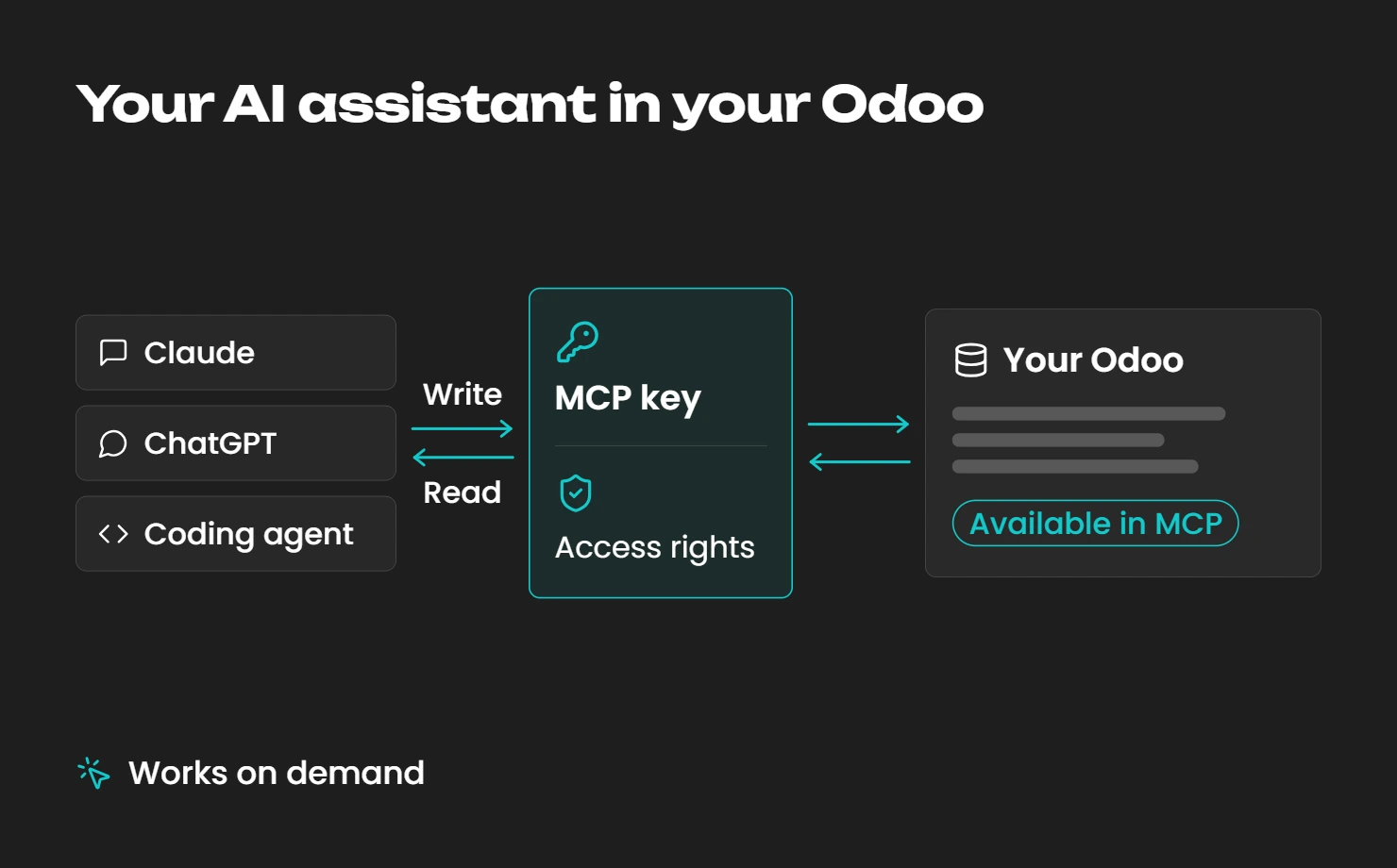
This is the part not many people are talking about, yet it is one of the biggest changes.
- Connect an outside AI assistant to your database over MCP, the Model Context Protocol. It arrived on Odoo Online in 19.4 (July 2026) and is native in Odoo 20 for every hosting type. In plain terms: Claude, ChatGPT or a coding agent can talk to your Odoo through a proper interface, not a scraped screenshot or a copy-paste. You create an MCP key in Odoo, and the external tool reads and writes data within that user's normal access rights.
- Expose your own server actions to the external assistant. In Odoo 20 you tick Available in MCP on a server action, and the assistant can run that exact business step instead of improvising one.
- Use a third-party module where you want more control. Developers were connecting Odoo to models like Claude well before 19.4. One module, for instance, marks every AI-made change with a badge in the chatter, so you can see at a glance what a human did and what the AI did.
How we use it at Solvti: we run our own MCP server in front of our Odoo and connect it to Claude. Access is set model by model (read, create, write, delete), every call runs as the signed-in user, and each call is logged. In practice that means a consultant can ask Claude to pull a lead's history, read the PDF attached to it, draft the next step and write it back to the record, in one conversation. If you want to see how that looks in a real workflow, get in touch.
One honest limit: MCP is pull-based. The external assistant acts when someone asks it to. For work that should happen by itself, the agents-in-automations from the previous section are the better fit.
Beyond standard Odoo: Solvti.ai agents
Standard Odoo gives you the building blocks: fields, skills, agents, automations. Solvti.ai is our answer to a different question: what if an agent ran a whole piece of work for the company, instead of making one person faster at one click?
The agents are built around business roles and grounded in your own Odoo, including your customisations and live data. What sets them apart from the standard setup:
- You stay in control. Sensitive actions need your approval, and every action leaves an audit trail.
- Any model. The agents are LLM-agnostic, from ChatGPT, Claude and Gemini to a fully offline setup. Standard Odoo AI works with OpenAI and Gemini.
- More than Odoo. They connect Odoo with HubSpot, Salesforce, Slack, Gmail and other systems where your work already lives.
- Where your team already is. You talk to them in Telegram, Slack or Teams, dictate a task from your phone, or forward an email and ask for something.
- Once or on a schedule. Ask an agent for a single job, or turn the same job into a routine that runs by itself, and see in one workspace which agents are running and what they are connected to.
Agent | Role | What it does |
|---|---|---|
Sonia | Sales development | Researches companies, qualifies leads, prepares quotes from the price list, drafts follow-ups |
Sebastian | B2C sales | Answers customer questions, recommends products, creates quotes and orders, escalates unusual cases |
Clara | Customer service | Resolves first-line requests from the knowledge base and order data, escalates complex cases |
Emilia | Executive assistant | Organises email and tasks in Odoo, prepares meeting briefs, keeps track of calendar and to-dos |
Adam | Accounting | Reconciles bank statements, categorises transactions, flags anomalies, speeds up month-end close |
Robin | Recruitment | Screens candidates against the role, schedules interviews, runs onboarding checklists |
Paul | Projects and billing | Flags projects at risk on deadline or budget, prepares invoices from timesheets, finds unbilled time |
Leo | Legal and compliance | Drafts standard contracts and NDAs, flags risky clauses, tracks deadlines and renewals |
Pia | Procurement | Finds suppliers, compares quotes on price, lead time and reliability, prepares negotiations |
Celina | Controlling | Runs recurring checks on live Odoo data from plain instructions and alerts you to variances |
Olaf | Odoo expert | Answers day-to-day questions about Odoo features, settings and issues |
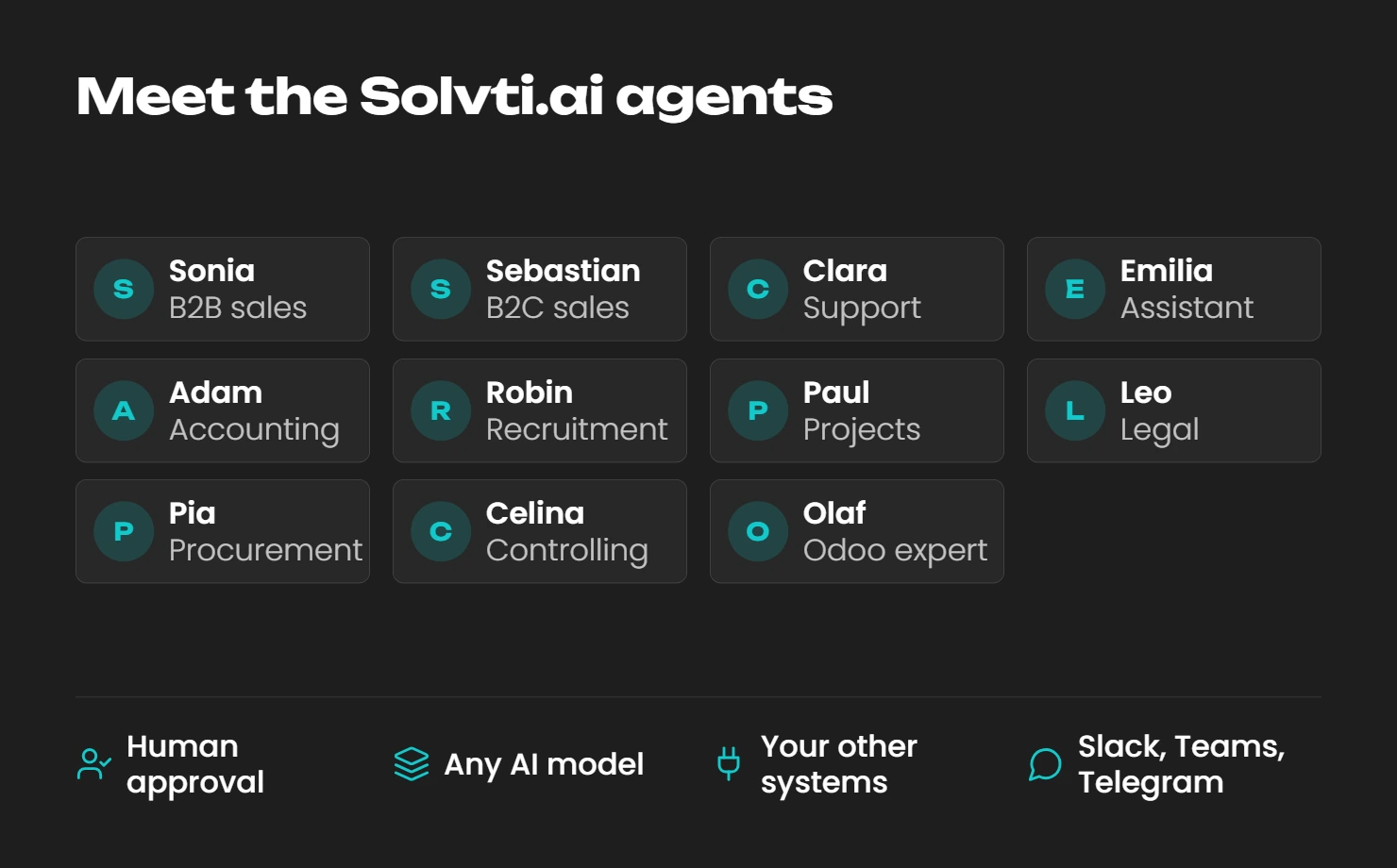
In every role, a person keeps the decision: closing the deal, approving the supplier, signing off the books. Three agents are live today, and the rest are in the library.
How does this sit next to Odoo 20? Odoo's own agents are the natural choice for work inside one database, on OpenAI or Gemini, paid with IAP credits. Solvti.ai is for companies that want agents shaped around a specific role and process, a different or offline model, or work that crosses Odoo and other systems.
Writing, rewriting, and the tone problem
Every one of these lives in the text tools, which show up as an AI icon or a "/" command in any rich-text field: description fields, notes, email composers, Knowledge articles.
- Generate text from scratch in a rich-text field, then insert it with Use this rather than having it overwrite anything.
- Rewrite a selected passage to be shorter or clearer.
- Rewrite it in a specific register, for example "more professional tone".
- Fix grammar on a selection without touching the rest of the document.
- Generate a follow-up message from whatever is on the record.
- Ask for suggested next steps on a lead or a ticket.
- New in Odoo 20: use the Translation Assistant to translate text and HTML fields, which helps anyone keeping product or website content in several languages.
Odoo's own documentation adds a line that should be house policy anywhere you use this: review generated content before it saves or sends. The final call stays with a person.
AI in Odoo Helpdesk: where this pays for itself fastest
- Ground a support agent in your own product guides and FAQ instead of the open internet, so it answers from your documentation rather than improvising.
- Auto-categorise and prioritise incoming tickets on creation. In Odoo 20 this can run as an agent inside an automation rule, with no click needed.
- Collapse a long, rambling customer email into a list of key points on the ticket.
- Put an AI button directly on the ticket, wired to a default prompt with context-specific instructions.
- Surface the three most relevant Knowledge articles on the ticket, so the agent stops searching.
- Draft a reply that already knows the lead stage and the customer's order history.
- New in Odoo 20: detect similar tickets with AI and get response suggestions based on how the team solved them before.
Items 42 to 46 are prompts and buttons you configure yourself on top of standard AI fields and agents. Item 47 ships with Odoo 20.
Odoo AI in Documents: the filing nobody wants to do
- Rename uploaded files sensibly with AI (19.4 on Online, Odoo 20 for everyone). It sounds like nothing until you inherit a folder of scan_0043.pdf.
- Move a document to the right folder automatically.
- Apply tags automatically.
- Flag multipage PDFs that need splitting by hand. Note the wording: the AI tags them, it does not split them.
- Use an AI server action as the decision layer, where the AI reads the record and picks which tool to run with which arguments.
- Write your own AI tool that pushes a result back into a field, for instance updating a task description.
A small Odoo 20 bonus outside AI proper: you can share a file from your phone straight into Odoo to digitise a bill or an expense, or to create a task, a lead or a time-off request.
Website, eCommerce, marketing, and the parts that look like magic
- Build a page conversationally with the AI Website Assistant (19.3), picking and editing snippets.
- New in Odoo 20: ask the Website Assistant to create completely new pages, not just edit existing ones.
- New in Odoo 20: have it create or edit web forms.
- Generate images, and in Odoo 20 also enriched buttons, for pages and mailings straight from an agent.
- Improve a page's SEO with AI: meta title, meta description and suggested keywords to accept or ignore.
- Write social posts with AI in Social Marketing (19.4 on Online, Odoo 20 for everyone).
- Get brand positioning suggestions during website setup, where Odoo proposes an angle such as luxury or eco-conscious based on your business type.
- New in Odoo 20: edit products from the shop page with AI, generating product images or changing a name, price or description in place.
- New in Odoo 20: let the AI assistant help set up campaigns in Marketing Automation.
- New in Odoo 20: see which website blocks were generated or changed by AI, because the editor now marks them. Useful for review, and for anyone who has to answer "who wrote this?"
- Let an agent search the web when it needs context to fill a field or run an action. This has been there since 19.0, so it is older than most people think.
- New in Odoo 20: let AI assign the most suitable emission factor to each emission in ESG. Until now that was rule-based (by product, partner or account); the rules still work, AI now covers what they miss. This is the one nobody expected, and the reason accountants in regulated markets are suddenly paying attention.
Odoo AI assistant: what changed in the agent chat
Easy to miss, because most of these arrived in minor releases nobody reads, and Odoo 20 now brings them to everyone.
- Ask questions about a file while you are previewing it, so you stop reading whole attachments to find one number.
- Send files into the chat with the agent and link documents from Documents.
- Reprocess sources on demand, so an agent answers from the current version of a document rather than last quarter's.
- Let Odoo pick the model for the task. You choose the provider, it chooses the model.
- Show clickable record cards in live chat instead of bare names, so the customer gets a link rather than a label.
- New in Odoo 20: come back to a conversation later. Agent chats are now kept for up to 30 days after the last message.
- New in Odoo 20: watch what the agent is doing step by step, instead of a generic "AI is thinking".
- New in Odoo 20: add options to a request from the "+" menu before you send it.
- New in Odoo 20: put context and dynamic values into default prompts, so one prompt adapts to the record it runs on.
- New in Odoo 20: agents get avatars based on their role, which helps once you run several of them.
Odoo AI setup: how you actually switch it on
This is less flashy than the tools themselves, but it is the main topic in our inbox.
Basic AI tools such as the text tools and Ask AI are part of the platform. Building your own agents, adding knowledge sources or changing the provider for a specific agent requires the AI app to be installed.
Odoo supports two providers: OpenAI (ChatGPT) and Google Gemini. In the AI app settings you can use Odoo's default connection or paste your own API key for either provider. If a file upload to an agent fails, a model that does not handle that file type is a likely cause.
Three things to get right:
- Hosting decides what you have. Versions 19.1 to 19.4 were released only on Odoo Online. A self-hosted or Odoo.sh database on 19.0 has the first row of the table and nothing else. Odoo 20 changes that: it brings the 19.x features to every hosting type, so for self-hosted teams the upgrade to 20 is the real AI upgrade.
- API keys on self-hosted. On Odoo 19, Odoo.sh and on-premise databases needed their own provider API keys for AI to work at all; on Odoo Online they were optional.
- Credits in Odoo 20. Odoo's release notes state that all AI features now need credits bought through IAP (In-App Purchases). Budget for them before you roll AI out across a team.
Preset (default) prompts let you define custom behaviour per model and per button. In Odoo 20 they can carry context and dynamic values from the record.
What AI in Odoo does not do, including inventory forecasting
The most searched question in this whole space is some version of "AI inventory forecasting in Odoo". So let us settle it.
Odoo has no AI stock forecasting. It has a Forecasted report and reordering rules, and both are useful, but they are arithmetic rather than a model. Odoo 20 goes a step further: it suggests minimum and maximum levels for reordering rules based on demand history, the days of coverage you want and how often you order. That is helpful, and it is still statistics on your history, not a forecasting model. The same goes for vendor bill line prediction (19.4 on Online, Odoo 20 for everyone), which pre-fills product, account, tax and analytics from past bills and the description. Odoo does not market either as AI. If someone is selling you AI demand planning in standard Odoo, ask them which menu it is in.
Other limits of standard AI in Odoo
- An agent can only do what its skills allow. Without create or update tools attached, it opens views and shows reports, nothing more. Giving it write access is a decision you make per agent.
- When Ask AI cannot do something, it does not surface an error. It says it cannot do it right now, which makes debugging harder for developers.
- The AI does not understand Odoo's data model the way a consultant does. It works with the text from fields and the tools it is given, against your prompt.
- Agents have a tool-call limit. In Odoo 20 they ask before going past it, which is good, but long multi-step jobs need a person in the loop.
- It will not approve a quotation for you on its own judgement, and it will not install a module.
That last point is actually the good news. It means you and your implementation partner decide where the line sits, rather than discovering it after the fact.
What it costs, and what happens to your data
On the bill, there are now up to three lines: your Odoo plan, IAP credits for AI (required for all AI features in Odoo 20), and, if you use your own OpenAI or Gemini key, the provider's own charges based on the model and account type. If you connect an external assistant over MCP, that assistant's subscription is a fourth. If you want the wider picture rather than just the AI line item, we broke down the total cost of ownership for Odoo separately.
The cost that catches people out is not the tokens, though. It is the mess in your data. Somebody running this at scale put it well: duplicates and gaps produce wrong analysis with extra confidence on top, so you pay twice, once for the AI and once for the human who checks it. Automating a mess just gets you a faster mess. With agents now running inside automations, that mess spreads faster too.
On data itself, answer these before you enable anything:
- Which records should the AI be able to see, and which absolutely not? Agents, MCP clients and AI fields all work within the access rights of the user they run as.
- Have you reviewed access rights after the upgrade? Odoo 20 simplifies them by removing record rules and putting a domain directly on the access right. That is cleaner, but it is a structural change, so check it before an agent starts reading on someone's behalf.
- Are you routing through Odoo's provider setup or your own contract with the model vendor?
- Are you comfortable with agent conversations being stored for up to 30 days after the last message?
Restrict to Sources, per-agent skills, access rights and, for MCP, per-model permissions are the tools you have.
So is AI in Odoo worth turning on?
Yes, for specific jobs. AI in Odoo already saves real time on finding data, writing summaries and turning documents into records. With Odoo 20 it also starts doing work on its own inside automations, and with MCP it opens your Odoo to the assistants your team already uses.
So the useful questions are not about features. They are: which of our workflows will this truly accelerate, what information can the AI safely see, who reviews what it writes, and what will the credits cost at our volume? Answer those first, start with one or two workflows, and widen from there.
If you want help picking those first workflows, want to see how we connect Odoo to Claude over MCP in our own daily work, or want to meet the Solvti.ai agents, get in touch.